
Selling
Your storefront
The public shop at your own web address — layout, branding, SEO and the till.
Every business on WeSelling gets a public shop at its own address. It shows your catalogue, takes orders, accepts payment and answers your customers' questions — and it is the same data your till and your stockroom read, so nothing has to be kept in step by hand.
Turning it on and off
The shop is on by default. A workshop, a wholesaler or a back-office operation can turn it off in Settings → Storefront — an empty storefront sitting on your address is worse than none, because search engines will index it.
Choosing a storefront pack
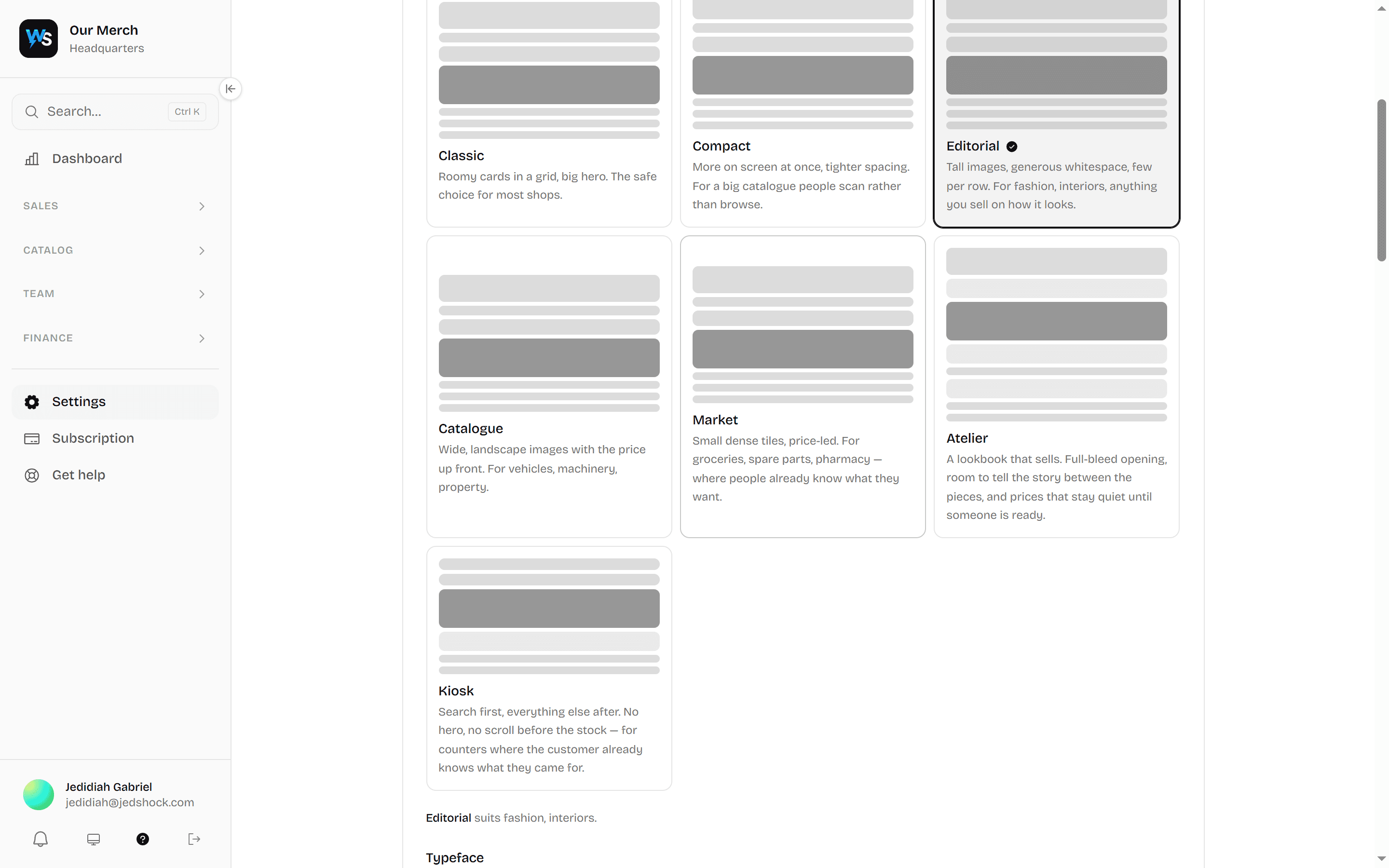
A pack decides the shape of your shop: what appears on the page and in what order. Seven ship with the platform, free to every shop. See Storefront packs for what each one suits.
Every pack sells the same way, with the same cart and the same checkout. Changing pack changes how your shop looks, never how it works.
Branding
| Setting | What it changes |
|---|---|
| Brand colour | Accents through the shop, the installed app's theme, the splash screen |
| Accent colour | The second stop of the shop's gradient |
| Logo | The shop header, receipts, gift cards and payment pages |
| Typeface | The whole shop. Six choices, all system fonts |
| Header images | The hero slideshow — images or video, with a call to action per slide |
| Tagline | The line under your header |
What appears in the shop
An item shows in your shop when it is active and marked storefront-visible in Inventory. Everything else — internal supplies, staff equipment — stays private.
You can also hide whole sections. A service-only business can turn Products off entirely; any shop can hide its header, tagline or featured rail.
The till
Signed-in staff see the same shop with a POS mode button. That turns the storefront into a scan-first till: scan a barcode, it goes in the basket, take payment. It is the same catalogue and the same cart your customers use, so there is no second system to keep in step.
Barcodes are staff-only. They never reach an anonymous visitor's page source. If your business has no scanner — a dealership sells cars, it does not scan them — turn the whole barcode surface off in Settings → Storefront.
Being found
Settings → SEO controls your page title, description, social preview image and search-engine verification. The shop also publishes:
- Structured data — puts your address, opening hours, live prices and in-stock status into a search result rather than a bare blue link
- A sitemap — so search engines find every product page
llms.txt— your catalogue and policies written for AI assistants, at your address plus /llms.txt
Answering customers
- FAQ — your own help centre, grouped, edited in Settings → FAQ
- Enquiry form — sits under the FAQ, lands in Enquiries
- WhatsApp button — a floating button to your business number
- Reviews — verified buyers only, so a rating means a purchase happened
Your own analytics
Settings → Storefront takes your own Google Analytics, pixel or chat widget. WeSelling does not charge for the integration and does not pick the vendor.
Your own domain
You can point a domain you own at your shop. Until it is verified, it serves nothing — an unverified claim on somebody else's domain must not resolve.
Every page in this area
| Page | What it does | Needs |
|---|---|---|
| Products | The physical products you sell — prices, quantities, and what's running low. Stock only ever moves through a recorded movement, so the count is always explainable. | Inventory · read |
| Requisitions | Ask the stockkeeper for internal supplies, and approve or issue what other staff have asked for. | Requisition · request |
| Stock transfers | Move stock between branches, with both sides of the movement recorded. | Inventory · transfer |
| Services | The work you sell — consultations, repairs, appointments — and memberships that grant access for a period. | Services · read · Services & Digital Products switched on |
| Digital products | Anything customers download after paying — e-books, music, albums, PDFs, templates, courses, software, photos and videos. Set a limited run or sell without limit. | Services · read · Services & Digital Products switched on |
| Validate member | Scan a membership card to check it's genuine and still in date before letting someone in. | Services · validate · Services & Digital Products switched on |
| Events & tickets | Dated events you sell admission to, the tickets issued for them, and who is allowed to scan at the door. | Events · read · Events & Tickets switched on |
| Scan tickets | Check people in at the door. A ticket scans once — the second attempt shows who came in on it and when. | Tickets · scan · Events & Tickets switched on |
| Reservations | Bookings for rooms, halls and other bookable space — who has what, and when they arrive and leave. | Reservations · read · Reservations switched on |